
Canva is adding AI image creation, interactive coding, spreadsheets, and more

Learn Canva's new AI-driven features, such as AI image creation, interactive coding features, and spreadsheet support. Find out how these features change the game for creativity and productivity for designers, marketers, and businesses.

Canva's Latest AI-Powered Features
Canva, the universally beloved design platform, is further redefining creativity and productivity with its new features for 2025. With AI image creation, interactive coding capabilities, and spreadsheet integration, Canva is on the move to empower creators, marketers, teachers, and businesses alike with innovative tools that make complex tasks easy. A closer look at these innovative additions comes below.

What is Canva's Text-to-Image App?
Canva's Text to Image app is an artificial intelligence image creator that allows you to type a description, and the application will generate distinctive images automatically from what you have written. It's a great method to create posters, memes, presentation illustrations, or simply test visual narrative. The best part is, it's free and integrated into Canva's system.
Getting Started with the App
1.Open Canva:
Begin by accessing your Canva account. In case you do not have an account, signing up is free and straightforward.
2.Locate the App:
At the left-hand side of your Canva dashboard, you will find the "Apps" tab and select it. You will type in "Text to Image" at the search bar. This is among Canva's popular apps, so you may already have it on your homepage.

3.Install the App
Click on the Text to Image feature to add it to your Canva workspace. Once added, the app will show up in the sidebar alongside your other design features.
Using the Text-to-Image Tool
You have installed the app. Let's make your first AI-image:
1.Choose a Design Template:
You can use the image generator within a current design or start a new design. For this tutorial, let's make a new Instagram post. Choose a square format template that is suitable for Instagram.
2.Find the App in Your Workspace:
Once you are within your design template, you will notice the Text to Image tool in the left sidebar. Click it to open the tool.
3.Enter a Prompt:
You will notice a text box where you can type what you want the image to be. You can add details like objects, colors, environment, or characters. For instance, type:
"A giraffe walking down a city street."

4.Generate Your Image:
Type in your prompt and hit enter. The AI will provide you with four alternative image choices to pick from.
5.Use an Image:
Click on the one you like best. It will automatically insert itself into your design template so that you can resize and place it wherever you want.

Canva Code: No-Code Coding Without Programming Skills
One of the most thrilling new features is Canva Code, a no-code solution that turns plain text prompts into fully functional apps, games, calculators, and widgets. This feature is ideal for users who have no coding skills but need to create interactive experiences fast and efficiently.
What You Can Create with Canva Code:
Interactive maps
Flashcard games
Custom calculators
Digital birthday cards
Prototype campaign widgets
The software employs AI to manage all coding operations, freeing the user to concentrate on creativity and not technicalities. Free accounts have access to Canva Code with reduced capabilities, while Pro accounts have greater capabilities through a common credit system applied across Canva's AI applications.
Spreadsheet Integration and Improved Collaboration
Besides visual design and coding features, Canva also accommodates spreadsheet features. This component allows users to handle data-driven projects with ease within the platform. Coupled with real-time collaborative features, teams are able to collaborate on presentations, designs, or data analysis without jumping between several software applications.
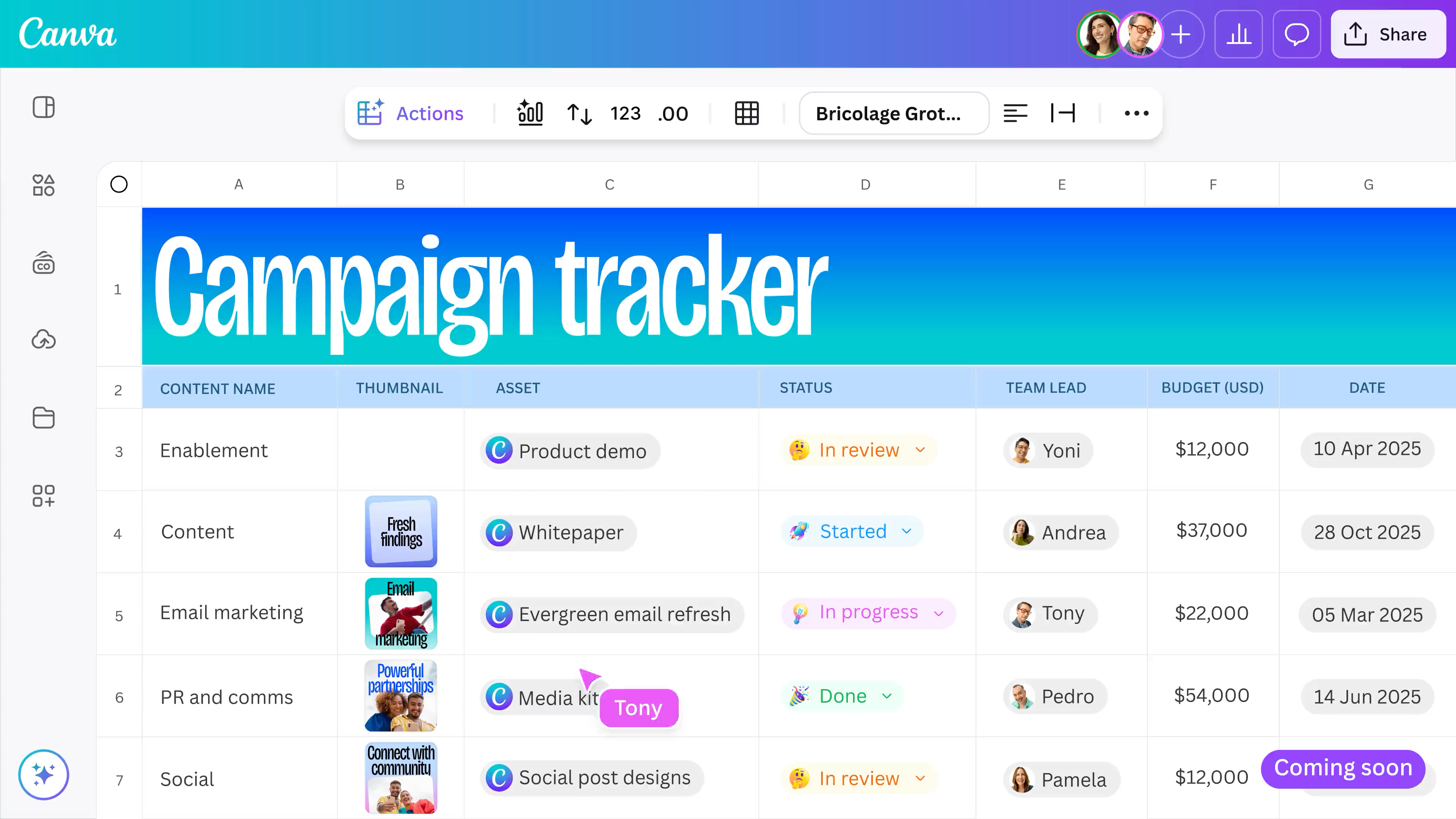
Advantages of Spreadsheet Integration:
Efficient workflows for data-intensive projects.
Dynamic content adaptation for use on various platforms.
Secure cloud storage makes it accessible anywhere.
Tips for Using Text to Image
1.Be Descriptive: The more precise your prompt, the more effective the outcome. Add adjectives, colors, and contexts.
2.Experiment Freely: You can create several iterations, so do not shy away from going creative or goofy.
3.Use in Any Design: Whether a Facebook post, Instagram story, presentation slide, or even flyer, this tool works in perfect harmony with Canva's design templates.
4.Reset and Regenerate: If you don't like the outcome, you can click "Create again" or "Start over" to generate a new prompt.
Final Thoughts
Canva's Text to Image app is a great and entertaining tool that brings the simplicity of Canva together with the power of AI. If you're a designer, teacher, marketer, or simply someone who enjoys awesome visuals, this app can assist in transforming your thoughts into stunning images in mere seconds.
So go ahead—let your mind wander. Your next meme or great presentation picture could be only a few keystrokes away!


